Bring your Splitwise history with you.
Export your data from Splitwise, and SplitterUp brings your groups, expenses, payments, and balances across — matched to the cent, with nothing duplicated if you import the same file twice.
Which Splitwise export should you use?
SplitterUp reads either kind of Splitwise export — pick whichever one your account can produce.
Have Splitwise Pro? Export a full backup.
From Splitwise, go to Account settings → Export your data. The backup is one JSON file that brings over every group at once, along with everyone's email address.
On a free Splitwise account? Export each group.
Open a group, then Group settings → Export as spreadsheet. That gives you a CSV for that one group, with people identified by first name only.
Either way, you can add more than one file to a single import — several group spreadsheets, or a spreadsheet alongside a backup. SplitterUp just reads the file itself; it never asks for your Splitwise login or API access.
How it works
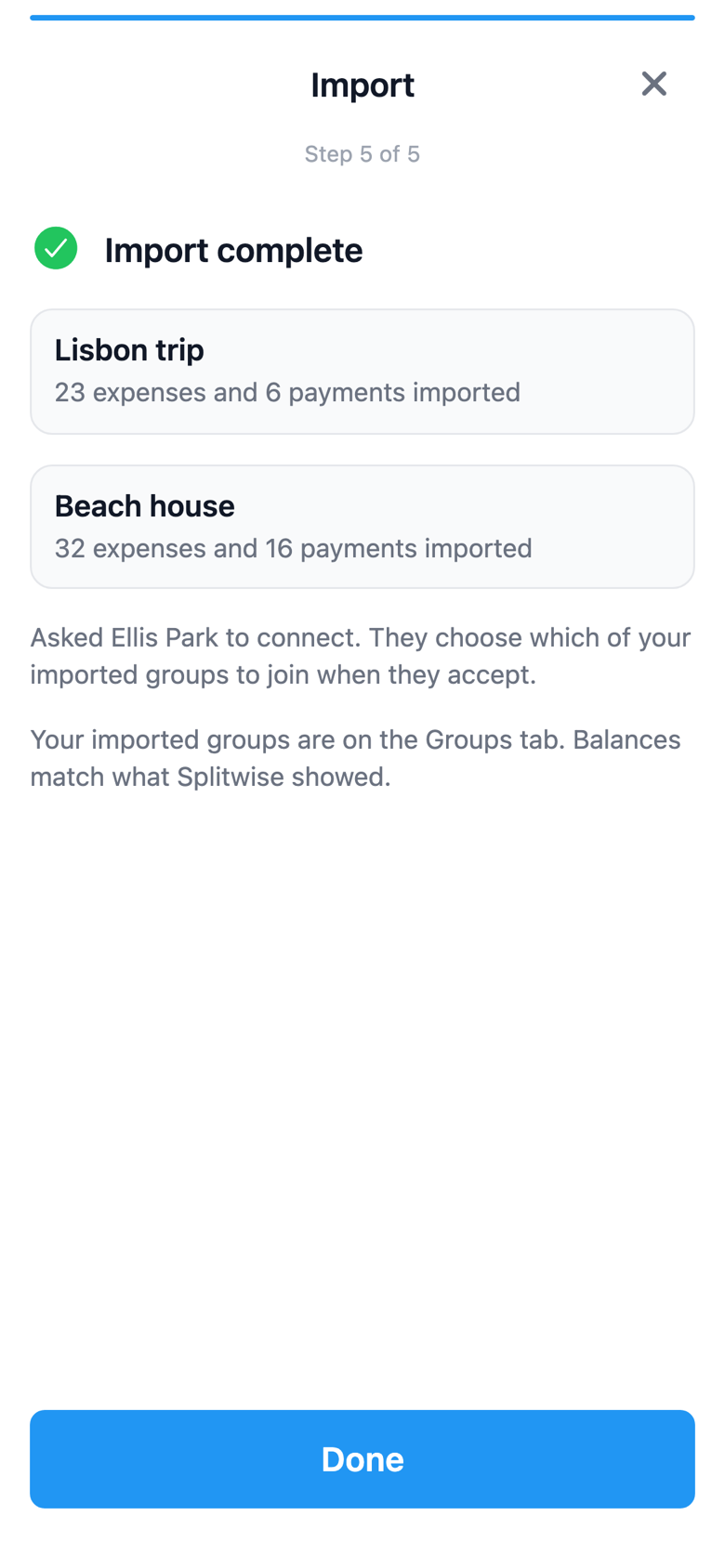
Open Account → Import from Splitwise and add your export. A five-step wizard walks you through the rest.
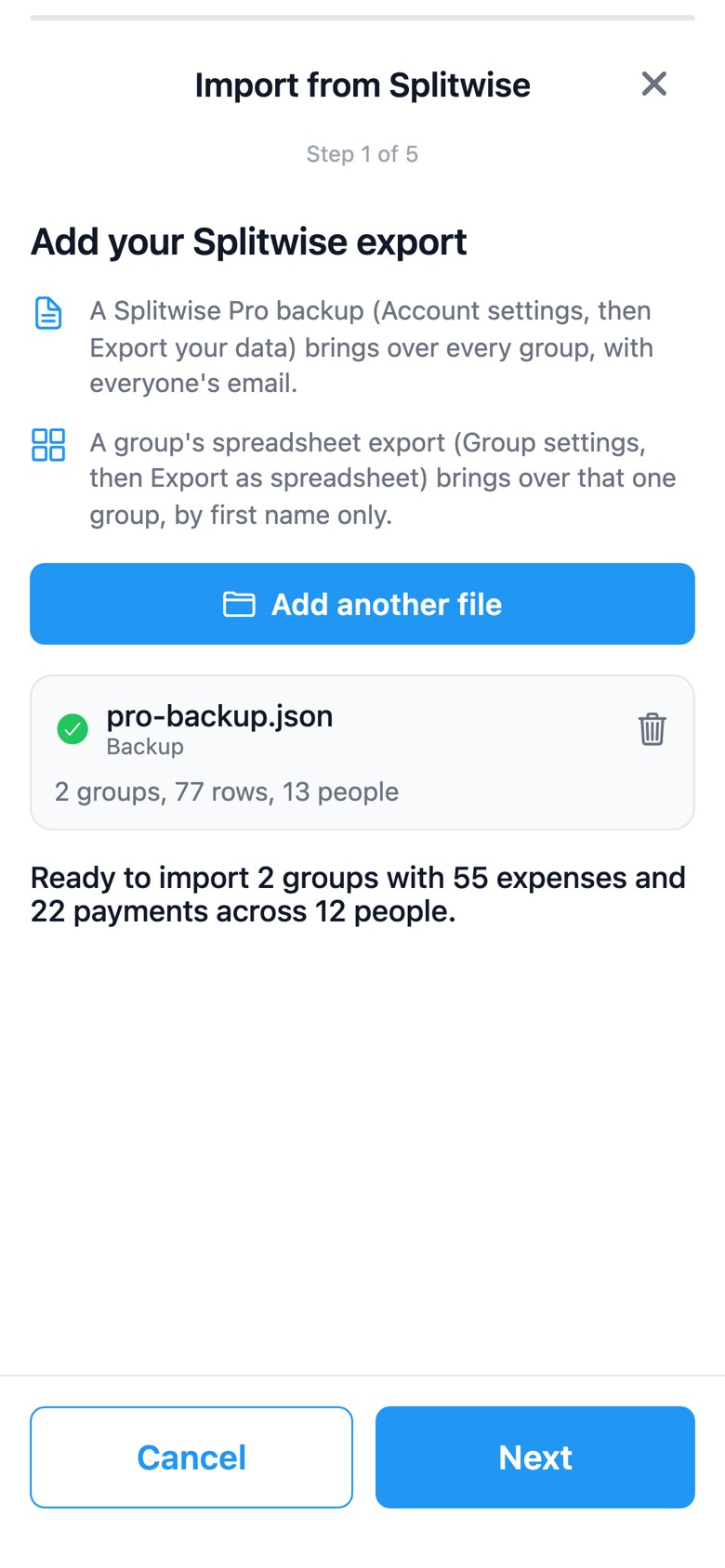
Files
Add the file (or files) you exported from Splitwise.
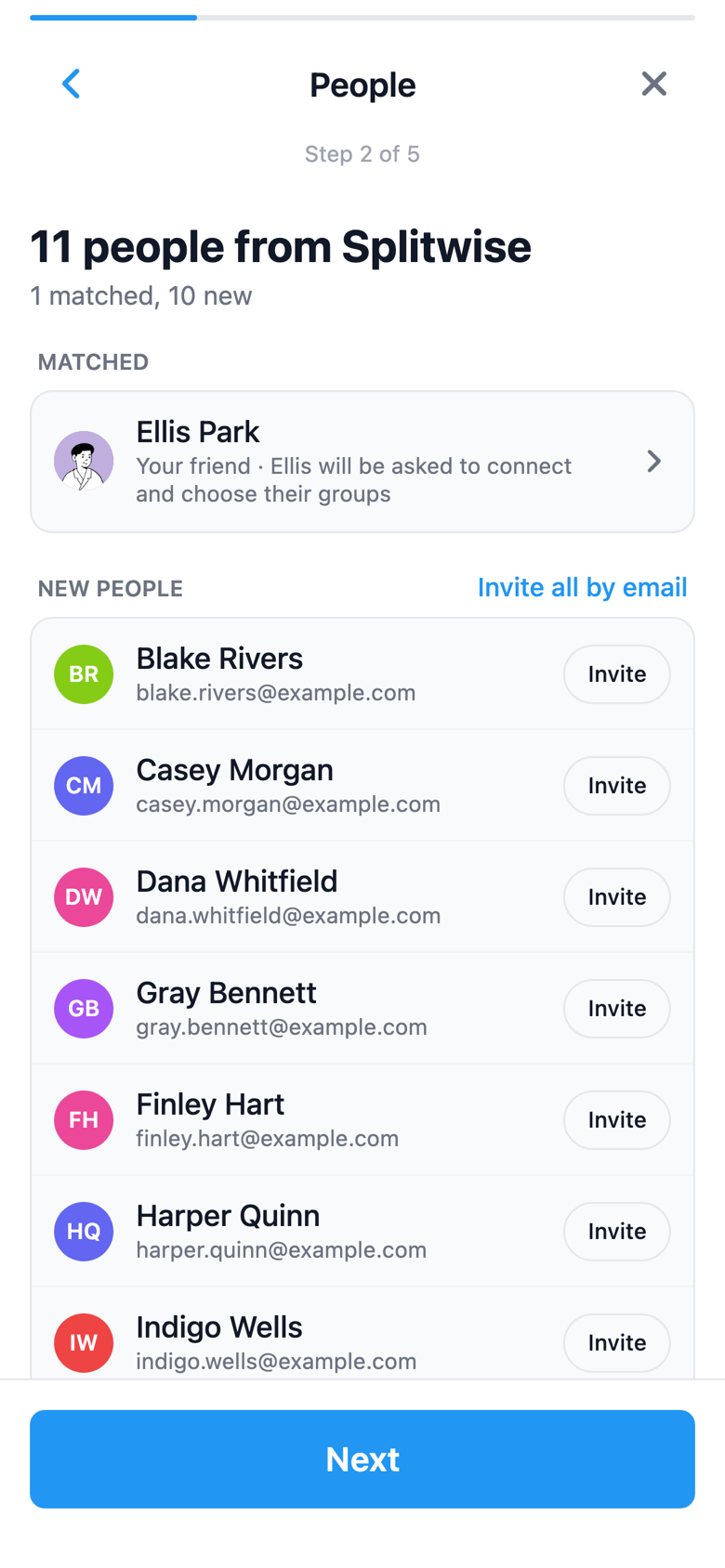
People
Match someone to an existing friend, invite anyone by email, or leave them as a saved person for now.
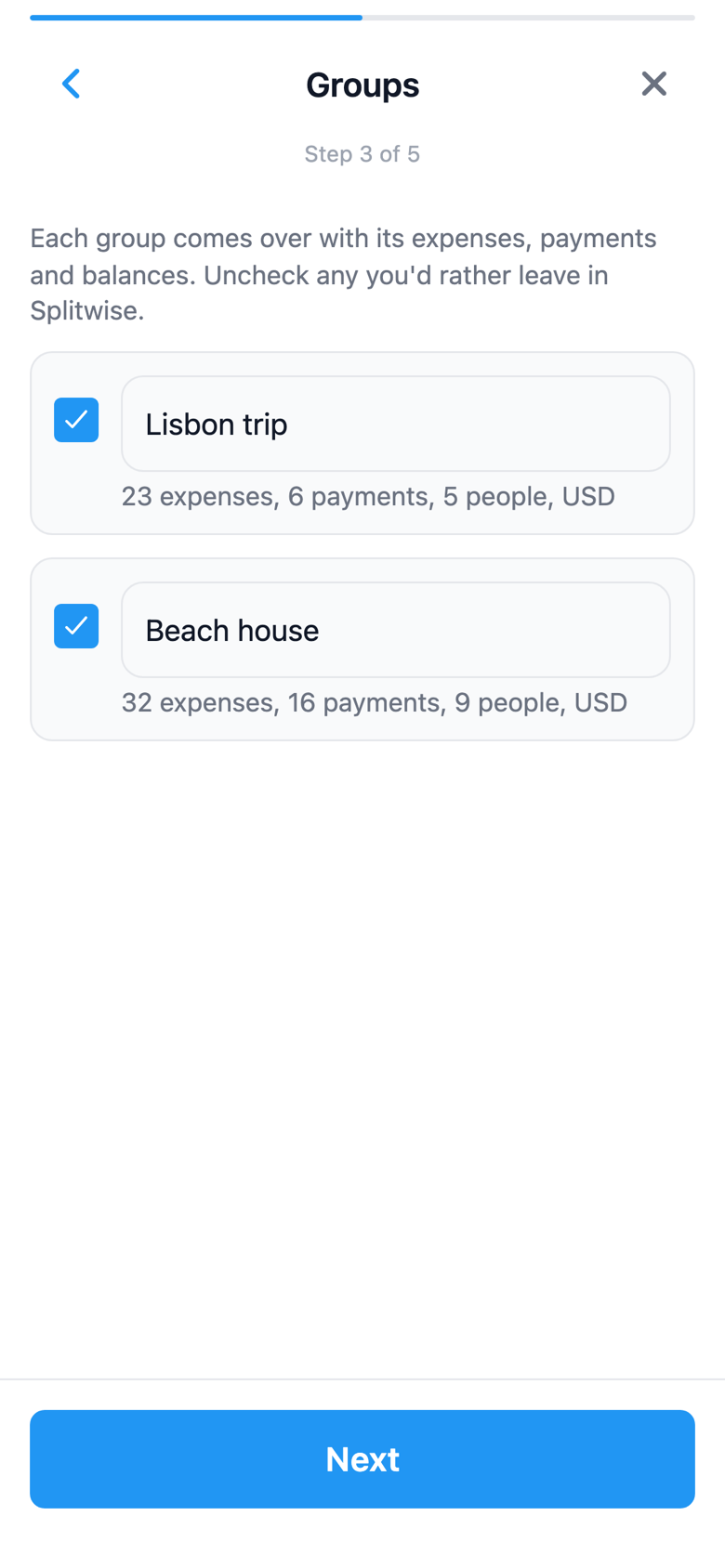
Groups
Choose which groups to bring in.
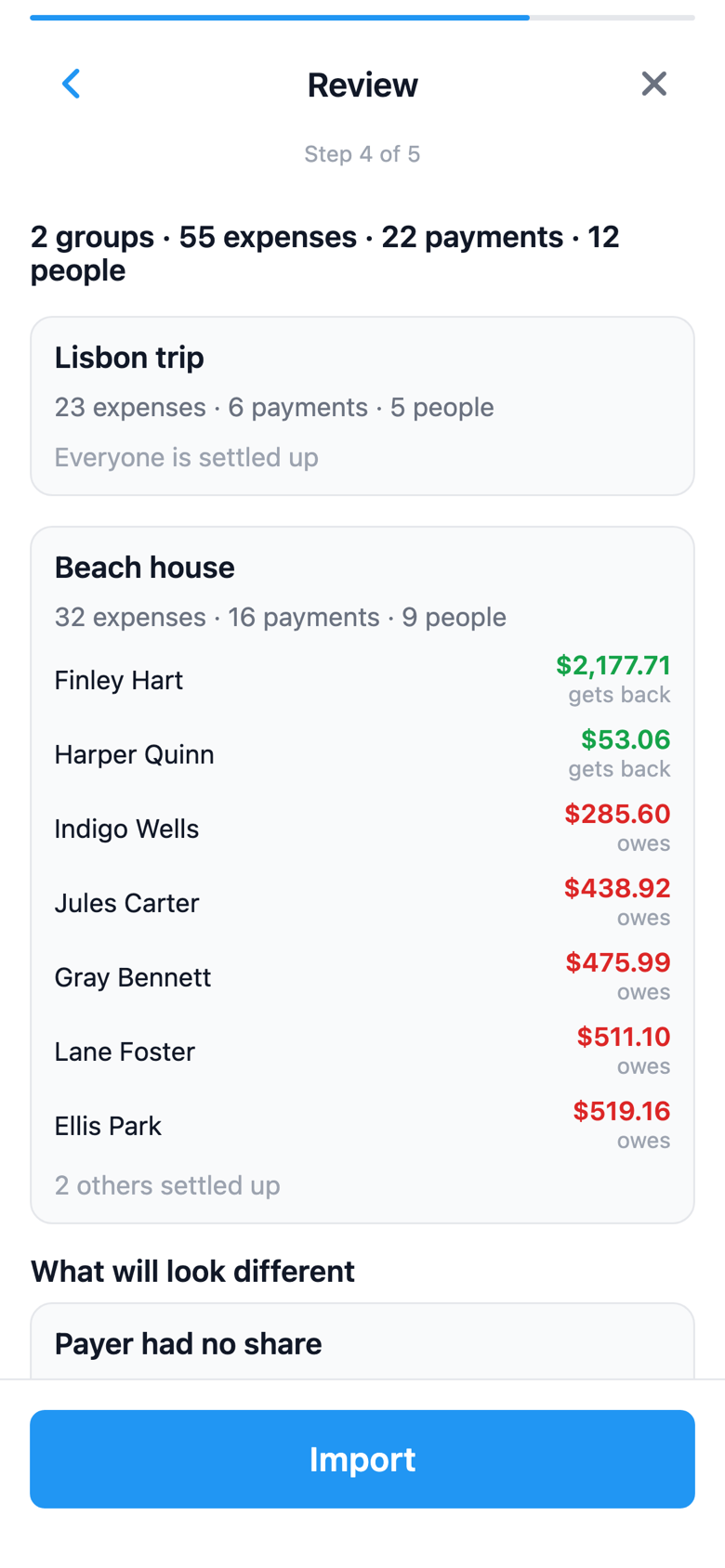
Review
See every expense, payment, and resulting balance before you commit.
Import
Tap Import to bring it all in.
What comes across, and what doesn't
An honest account of both sides, so there are no surprises.
What comes across
- Every group you choose to bring in, with its full expense history
- Expenses and payments, matched to the cent against what Splitwise reported
- Members, dates, notes, and currencies, recorded exactly as Splitwise had them
- Each person's share of every expense
- Categories, mapped to SplitterUp's own
- One-on-one expenses, outside any group, land on your Friends list
What doesn't come across
- Receipt photos and comments stay in Splitwise
- Expenses Splitwise had already deleted, or left empty, aren't brought in
- On an expense split by several payers, the total is exact, but each payer's share is approximated
- Only one Splitwise account per import — files from two different accounts can't be combined
- A group that mixes currencies settles in your own default currency going forward
Bringing your people along
Match, invite, or save for later
Everyone from your Splitwise export becomes a saved person in SplitterUp. From there you can invite anyone by email, or match them to a friend you already have on SplitterUp — if they used the same email on Splitwise, SplitterUp suggests the match for you. Matching sends them a connect request: nothing moves to their account until they accept, and once they do, they choose which of your imported groups to actually join.
The import wizard — like the rest of SplitterUp — is available in English, Español (Latinoamérica), Deutsch, Slovenčina, Polski, and Français.
Common questions

Bring your history with you.
Download SplitterUp, export your data from Splitwise, and import it in a few taps.
